
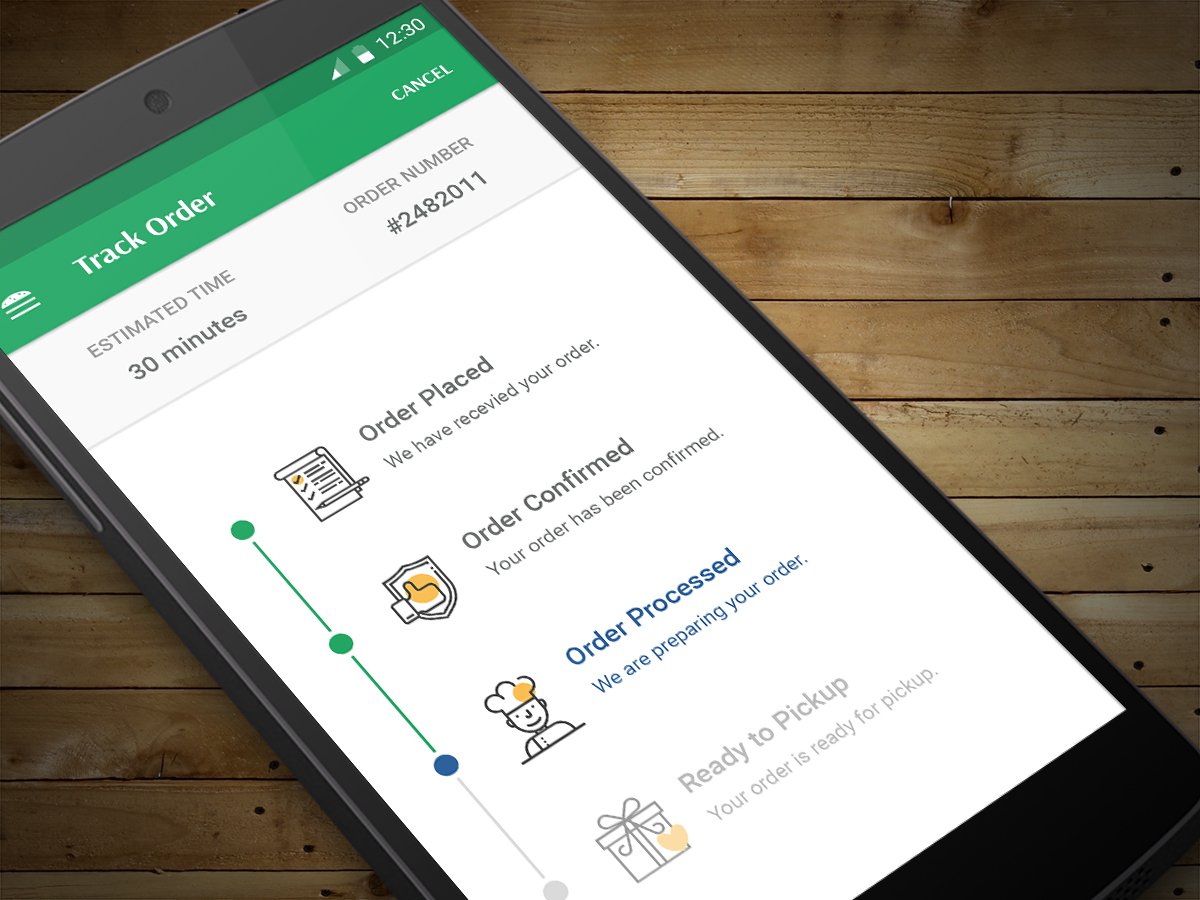
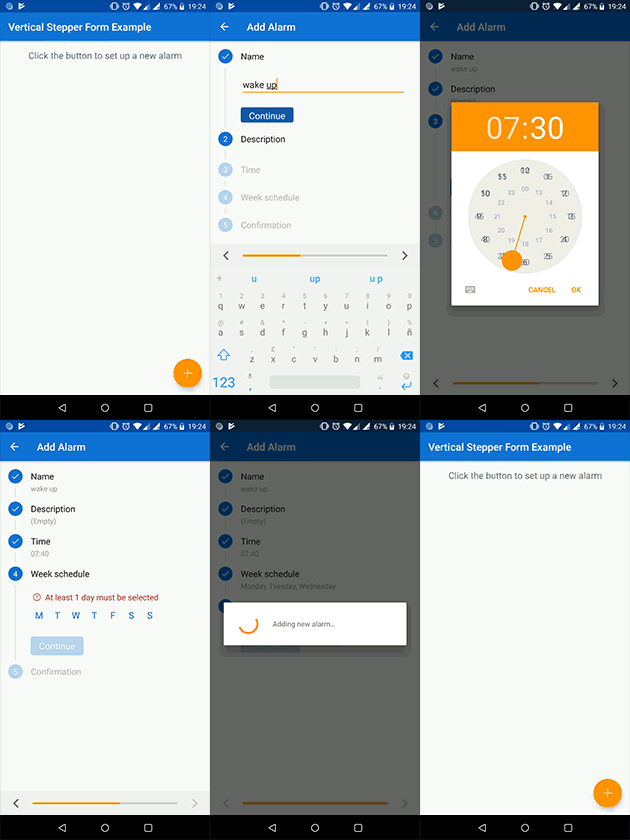
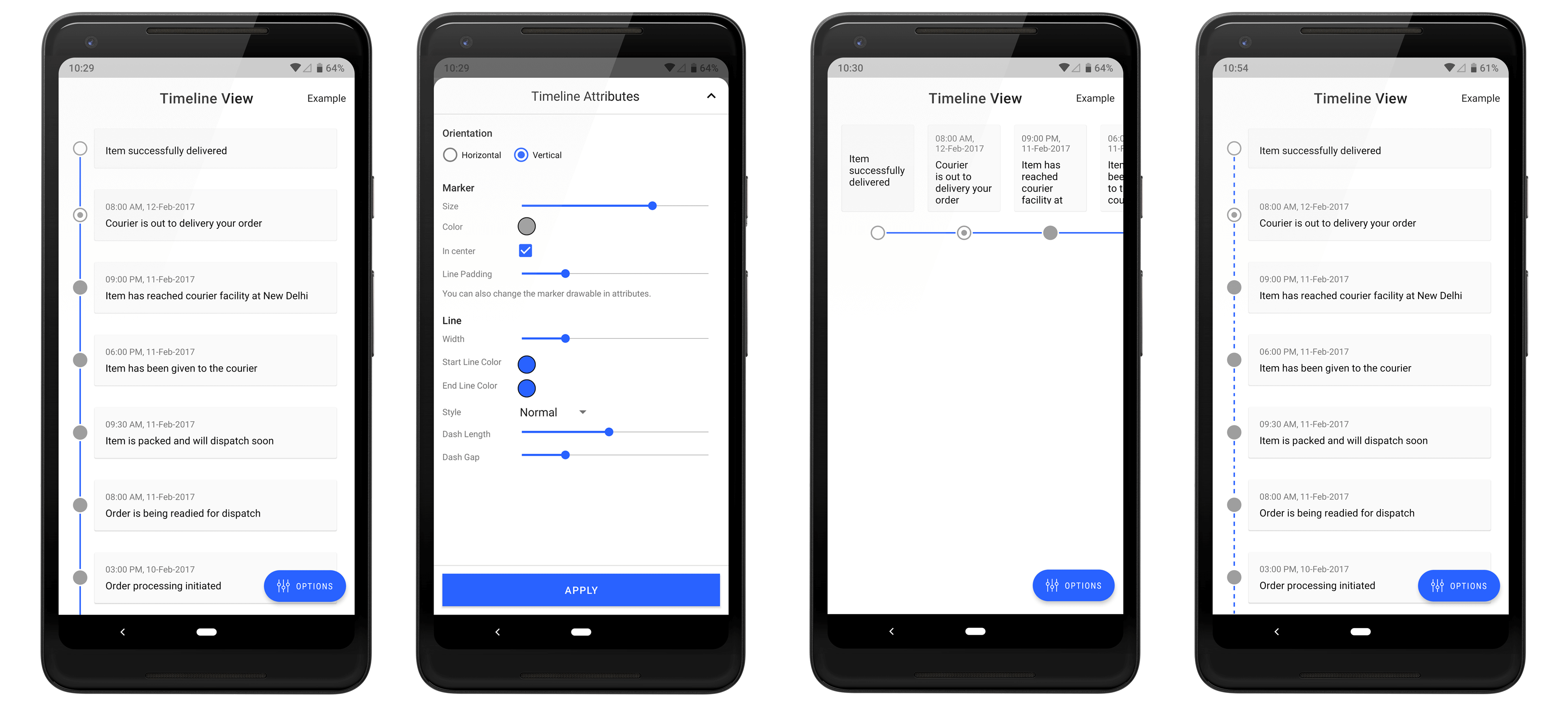
Android Timeline View Library (Using RecyclerView) is simple implementation used to display view like Tracking of shipment/order, steppers etc. Previously we discuss Android Vertical Steppers library which may display a transient feedback message after a step is saved.
And today we’re going to see a cool library which help you to implement that Android Timeline View in your applications.
Want something new ? : HollyViewPager – Android Navigation Animation Library
How to Add Android Timeline View in your app?
Include Android Timeline View library
Using Gradle
dependencies {
    compile 'com.github.vipulasri:timelineview:1.0.5'
}
Using Maven
<dependency>
    <groupId>com.github.vipulasri</groupId>
    <artifactId>timelineview</artifactId>
    <version>1.0.5</version>
    <type>pom</type>
</dependency>
Manual:
Manual – Using Android Studio:
- Download the library folder and import to your root application folder. You can manually achieve this step with 3 steps:
- Paste the folder library into your application at the same level of your app, build and gradle folder
- Add to your settings.gradle file the following code line: “include ‘:app’, ‘:timelineview'”
- Rebuild the project
- File → Project Structure → in Modules section click on “app” → Click on tab “Dependecies” → Click on the green plus → Module Dependecy → Select “:library”
- Done
Download Project
[button color=”blue” size=”” type=”3d” target=”_blank” link=”https://github.com/vipulasri/Timeline-View/archive/master.zip”]Download Android TimelineView[/button]
[button color=”blue” size=”” type=”3d” target=”_blank” link=”https://github.com/vipulasri/Timeline-View/tree/master/apk”]Download Android TimelineView APK Example[/button]
[button color=”blue” size=”” type=”3d” target=”_blank” link=”https://github.com/vipulasri/Timeline-View/archive/master.zip”]Download Android TimelineView Example (Food Order Tracking)[/button]
Use Android Timeline View library
In XML Layout :
<com.github.vipulasri.timelineview.TimelineView
    android:id="@+id/time_marker"
    android:layout_width="wrap_content"
    android:layout_height="match_parent"
    app:markerSize="20dp"
    app:lineSize="2dp"
    app:line="@color/colorPrimary"/>
Line Padding around marker
<com.github.vipulasri.timelineview.TimelineView
    android:id="@+id/time_marker"
    android:layout_width="wrap_content"
    android:layout_height="match_parent"
    app:markerSize="20dp"
    app:lineSize="2dp"
    app:line="@color/colorPrimary"
    app:linePadding="5dp"/>
Configure using xml attributes or setters in code:
| Attribute Name | Default Value | Description |
|---|---|---|
| app:marker=”@drawable/marker” | Green Colored Oval Drawable | sets marker drawable |
| app:markerSize=”25dp” | 25dp | sets marker size |
| app:markerInCenter=”false” | true | sets the marker in center of line if `true` |
| app:line=”@color/primarColor” | Dark Grey Line | sets line color |
| app:lineSize=”2dp” | 2dp | sets line width |
| app:lineOrientation=”horizontal” | vertical | sets orientation of line ie `horizontal` or `vertical` |
| app:linePadding=”5dp” | 0dp | sets line padding around marker |
- RecyclerView Holder : Your
RecyclerViewHoldershould have an extra paramenter in constructor i.e viewType fromonCreateViewHolder. You would also have to call the methodinitLine(viewType)in constructor definition.
public class TimeLineViewHolder extends RecyclerView.ViewHolder {
       public  TimelineView mTimelineView;

       public TimeLineViewHolder(View itemView, int viewType) {
           super(itemView);
           mTimelineView = (TimelineView) itemView.findViewById(R.id.time_marker);
           mTimelineView.initLine(viewType);
       }
   }
- RecyclerView Adapter : override
getItemViewTypemethod in Adapter
@Override
    public int getItemViewType(int position) {
        return TimelineView.getTimeLineViewType(position,getItemCount());
    }
And pass the viewType from onCreateViewHolder to its Holder.
@Override
    public TimeLineViewHolder onCreateViewHolder(ViewGroup parent, int viewType) {
        View view = View.inflate(parent.getContext(), R.layout.item_timeline, null);
        return new TimeLineViewHolder(view, viewType);
    }
 Nuur Hasan
Share your thoughts